Create and Manage Groups in VIDIZMO
Groups allow you to apply permission settings to multiple users at once instead of configuring them individually. Settings applied to a group affect all group members, and content access can be assigned at the group level.
VIDIZMO includes 11 default groups at the global level that exist in every portal of the account: All Users, Audit Log Reader, Billing Manager, Content Manager, Contributor, Group Manager, IT Administrator, Portal Manager, Report Reader, User Manager, and Viewer. These default groups are marked with a Global badge and cannot be deleted or renamed. You can also create custom groups to meet your specific requirements.
To learn about groups, see Understanding Groups.
Prerequisites
- Membership in the Group Manager group, or Group Management permissions enabled.
Access the Groups Page
- Select the hamburger menu (☰), then go to Admin > Users & Groups.
- The Groups section displays on the left side of the page.
- Optionally, select the Filter icon to reveal filter options:
- Enter the group name to search.
- Select All or Has Notification Settings from the dropdown.
- Choose a portal from the portal dropdown.
Create a Group
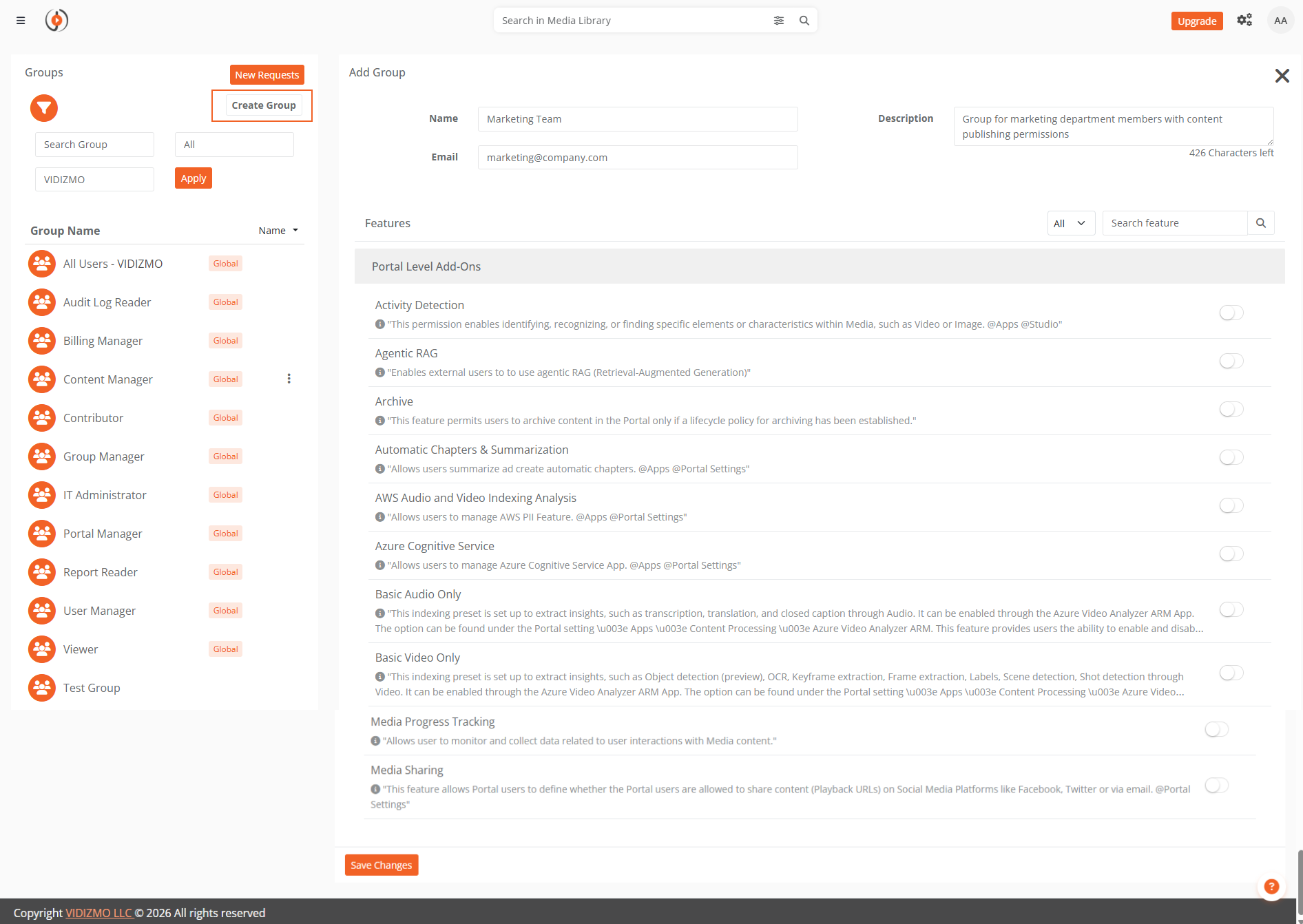
- In the Groups section, select Create Group.
- Enter the Name for the group.
- Optionally, enter an Email for the group.
- Enter a Description to explain the group's purpose (maximum 500 characters).
- In the Features section, toggle the permissions you want to enable for the group. Use the dropdown to filter by All, Features, or Portal level Add-ons, and use the search box to find specific permissions.
- Select Save Changes.
Permissions applied to a group affect all users in the group and align with the features defined in their CALs.
Edit a Group
- Select the overflow menu (three dots) next to the group name.
- Select Edit Group.
- Modify the group fields as needed. Toggle permissions on or off in the Features section.
- Select Save Changes.
NOTE: Default groups (marked with the Global badge) cannot have their name changed.
Delete a Group
- Select the overflow menu (three dots) next to the group name.
- Select Delete Group.
- In the confirmation dialog, select Delete.
Default groups cannot be deleted. When a custom group is deleted, the feature permissions assigned through that group are removed. Individual permissions granted through CALs persist after group deletion.